Render Manager
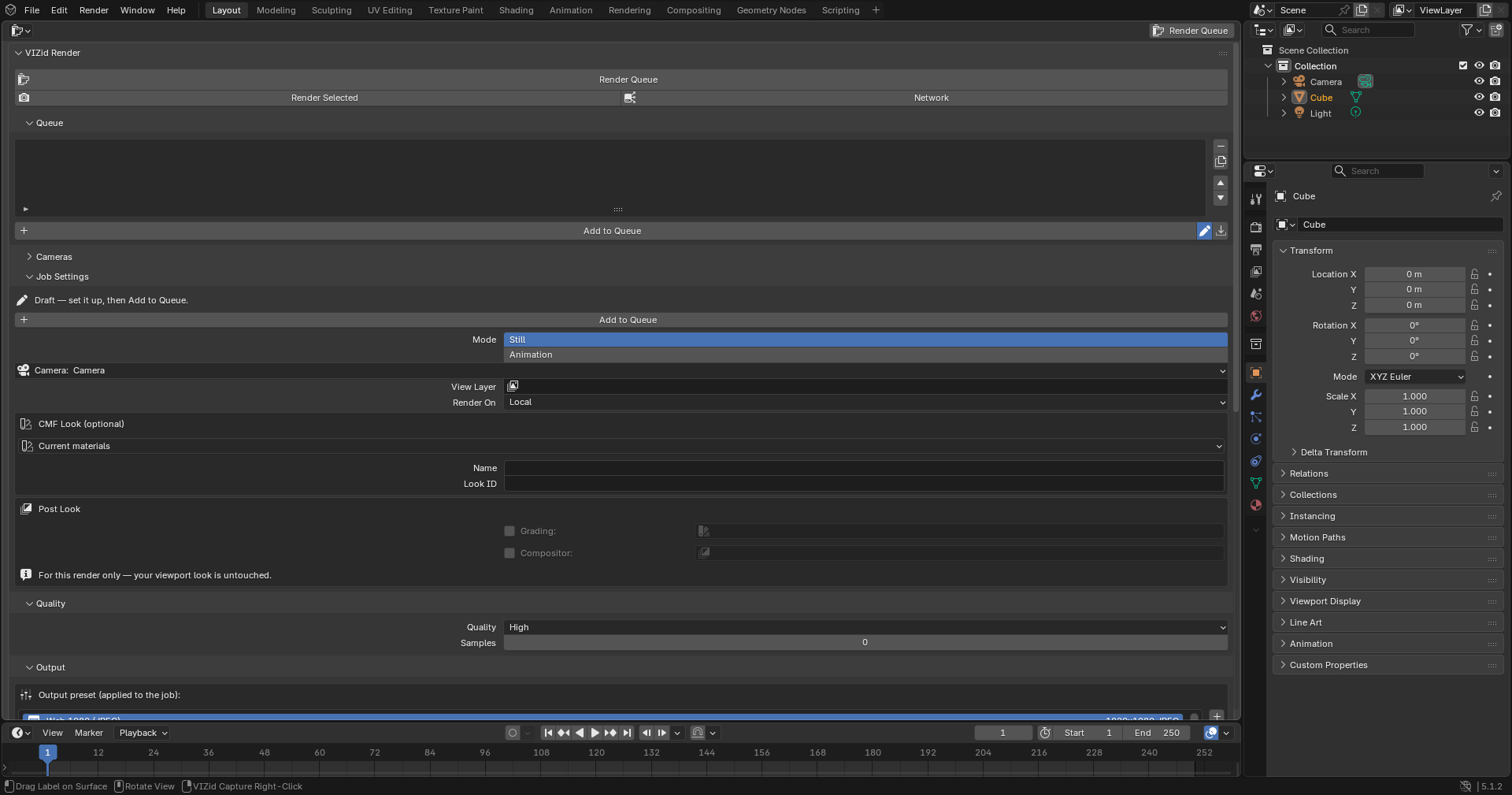
The VIZid Gloss render manager.
The Render Manager organises a model’s final imagery as a reorderable queue of render jobs, each with its own camera, resolution, quality, output format and optional material and post-processing look. The queue is then rendered in one pass, leaving the scene exactly as it was found.
The workflow mirrors a studio render manager: a job is composed in a draft, committed to the queue where it becomes a locked, read-only snapshot, and rendered. A queued job that has already rendered is not rendered again unless it is duplicated or unlocked and edited, so an established queue can be re-run without overwriting finished frames.
The Render Manager runs in the dedicated VIZid Render editor. In stock Blender it falls back to a VIZid Render tab in the 3D Viewport sidebar. A compact set of render buttons also appears at the top of the 3D Viewport toolbar (T): Render renders the whole queue, Queue focuses the queue, and Add to Queue commits the current draft.
Reference
- Editor:
VIZid Render
- Panel:
The Render Panel
The VIZid Render panel is organised into a stack of sub-panels:
- Queue
The list of render jobs and the controls that build it.
- Cameras
A short camera list for the scene; selecting a camera activates it. The full controls are in the Camera editor.
- Job Settings
What the focused job renders – mode, camera, view layer, render backend, CMF Look and post look.
- Quality
The job’s quality preset and sample count.
- Output
Resolution, format, passes, folder and filename for the job.
- Project
The per-file project code, name and render root used in filenames.
The settings panels always show one focused job: the draft while a new job is being composed, otherwise the job selected in the queue. When a locked queue item is focused, its settings are shown read-only.
At the top of the panel, Render Queue renders the whole queue, Render Selected renders just the selected job, and Submit to Network sends the network jobs to the VIZid Flow farm. While a render is running these are replaced by a Cancel Render button, which returns the toolbar to its normal state; the running render itself is stopped with Esc.
Setting Up a Render
A render job is composed in the draft, in the Job Settings, Quality and Output panels, before being added to the queue.
Quality, CMF Look and post-look presets in the job settings.
Mode and Camera
The job Mode selects a Still (a single image) or an Animation (a frame range). For an animation, Use Scene Range follows the scene’s frame range, or the Start, End and Step can be set on the job.
The Camera menu picks the camera to render with; VIZid cameras are listed first, then the other scene cameras, and Scene Camera uses whichever camera is active. The View Layer field renders a single view layer (blank renders all enabled layers). Render On selects the Local or Network backend.
Quality
The Quality panel sets the render quality from a preset. A new job starts at High:
- Current Scene
Use the scene’s existing render settings unchanged.
- Draft
Fast preview quality (32 samples, 4 light bounces).
- Standard
Balanced quality (128 samples, 8 light bounces).
- High
Production quality (512 samples, 12 light bounces).
- Maximum
Maximum quality (2048 samples, adaptive, 24 light bounces).
Each preset drives the engine, sample count, light bounces, adaptive sampling
and denoising. The Samples field overrides the preset’s sample count; with
Current Scene, a value of 0 keeps the scene’s own samples.
Output
The Output panel controls resolution, file format and where the result is written.
An output preset is a named bundle of resolution and format settings. The built-in presets cover common deliverables – Web 1080 (JPEG), Web 1080 (PNG), Hero 4K (PNG), Print 4K (TIFF 16), EXR Passes 4K and Square 2K (PNG). Selecting a preset applies it to the focused job, and the choice is remembered so a new file starts with the usual output. The buttons beside the list add, remove and update presets from the current job.
Resolution offers preset sizes (1080p, 1440p, 4K, 720p and square 1K/2K/4K) or Custom width and height, plus a scale percentage. Format selects the image format (PNG, JPEG, OpenEXR, TIFF or WebP) with the colour depth and a Transparent (alpha) option.
The Passes / AOVs tick list enables extra render passes – Depth, Normal, Diffuse, Reflection, Emission, AO, Shadow, Mist and Cryptomatte. When any pass is enabled, Deliver chooses between a single multilayer OpenEXR (beauty plus every pass in one file) and separate files per pass (the beauty in the job format, each pass as its own EXR). Cryptomatte requires the multilayer option.
The Folder and Name fields set the output directory (blank uses the project
root) and the filename pattern. The pattern accepts tokens that are expanded at
render time: {project}, {projname}, {file}, {camera},
{layer}, {look}, {ver}, {date}, {time} (HHMM), {frame},
{w} and {h}. A preview of the resolved filename is shown below the
field.
The render version (the {ver} token) is set in the Version
box: a per-project counter, a machine-wide System counter, a fixed Custom
label, or Off. With Auto-increment on, the counter advances after each
render so finished renders are never overwritten.
CMF Look
A job can render under a specific CMF Look – a part-aware material variant from the asset library. The CMF Look menu in the job settings selects the Look; leaving it blank renders the model’s current materials.
The Look is applied (part-aware) before the render and the original materials
are restored afterwards, so one model can render as any number of CMF variants
from the queue. The Look name also feeds the {look} filename token, so the
output names track the material variant.
Post Look
The Post Look block applies colour grading and the compositor for this render only, without changing the live viewport, compositor or editor selection.
Each of Grading and Compositor has a tick that turns it on or off for the render, and a preset picker that chooses which grade or compositor preset to use. Leaving a picker blank uses the scene’s current look. The grade and compositor presets are those managed by the colour-grading and compositing editors. The chosen look is applied before the render and the on-screen look is restored afterwards.
The Queue
The render queue.
The queue is the list of jobs in the Queue panel. Each row shows an enable tick, the job name with a still or animation icon, a network marker for network jobs, a status icon (pending, rendering, done, failed or skipped) and a padlock. Clicking the padlock locks or unlocks that job.
Beside the list, the column buttons remove a job, duplicate it, or move it up and down to change the render order.
Draft, Add, Lock
New jobs are built in the draft and then committed to the queue:
With the draft focused, set up the job in the Job Settings, Quality and Output panels.
Press Add to Queue to commit the draft as a new, locked queue item.
Press New Job to start composing the next job in a fresh draft.
The draft is the one editable job; queued items are locked snapshots. The pencil button toggles draft-compose mode, and the import button (Capture Current Settings) seeds the draft from the scene’s current render settings.
Unlock, Edit, Save
A locked queue item is read-only. To change it, select it and press Unlock to Edit. The settings panels become editable; press Save & Lock to commit the changes and re-lock the job, or Copy to Draft to build a variant in the draft instead.
If an unlocked job had already rendered, saving and re-locking it (or re-locking it from the padlock) returns its status to Pending so the new settings are rendered again.
Duplicate
Duplicate copies the selected job as a fresh, re-renderable queue item. Because a job that has already rendered is skipped on the next run, duplicating a finished job is the way to render it again – for example, to produce the same shot under a different CMF Look or at a different resolution.
Rendering the Queue
Render Queue renders every enabled local job in order. It runs as a modal operation, stepping through the jobs one at a time and updating each job’s status as it goes; the running render is stopped with Esc. The Cancel Render button only returns the toolbar to its normal state.
Jobs that have already rendered (status Done) are skipped, so re-running the queue only renders new or changed jobs. To force a finished job to render again, duplicate it, or unlock and save it.
Render Selected renders just the selected job immediately and runs blocking (there is no Esc cancel for a single job). A job that is already done is not re-rendered; duplicate or unlock and edit it first.
Throughout, the scene’s own render settings – engine, resolution, format, camera, frame range, samples, materials and post-processing look – are snapshotted before the queue runs and restored afterwards, so rendering the queue never alters the working scene.
Network Rendering
A job’s Render On field can be set to Network instead of Local, which sends it to the VIZid Flow render farm rather than rendering it on the workstation.
With Render On set to Network, the job’s hardware requirements are set in the
Network Hardware box (render backend, GPU, VRAM, RAM and node labels),
and Submit to Network uploads the saved .blend and the job to the
VIZid Flow server. The server matches the job to nodes whose hardware meets its
requirements, chunks its frames across them and renders them in parallel; the
VIZid Flow status panel tracks progress.
See VIZid Flow (Network Rendering) for the full setup – installing the VIZid Flow server and render nodes, connecting the add-on, and the hardware-requirement and monitoring controls.