Compositing / Post
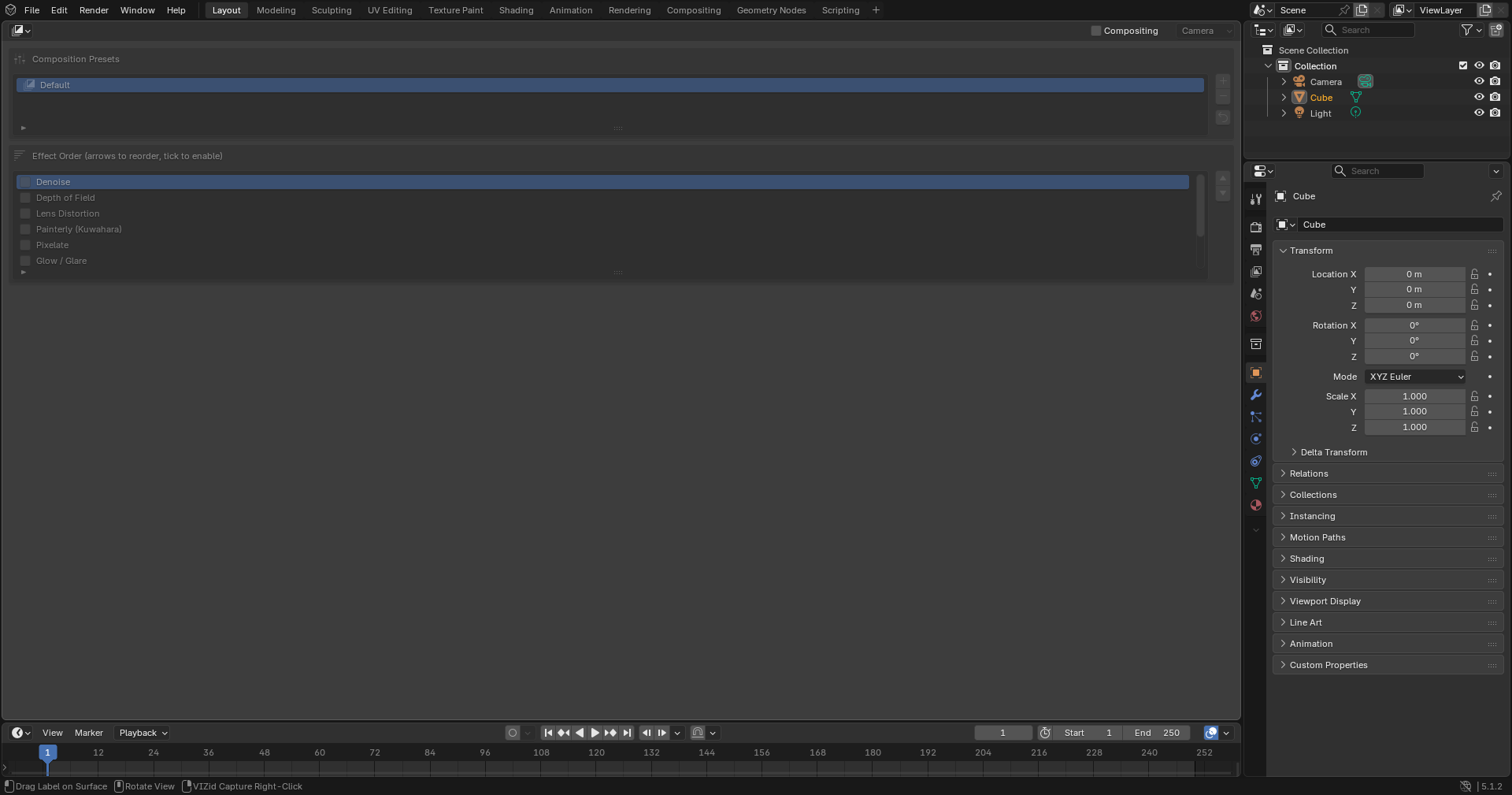
The Compositing / Post panel.
Compositing / Post is the dedicated post-processing editor of VIZid Suite. It builds a reorderable chain of compositing effects – denoise, depth of field, lens distortion, painterly, pixelate, glow, background, vignette and sharpen – applied live in the compositor over the rendered image. Each effect can be toggled on or off and reordered, and the whole chain is saved as a named Composition preset that a render job can pick.
The effects run after the colour grade block (see Color Grade). Like the grade, the chain drives the viewport’s compositor preview as well as the final render.
Compositing runs in the dedicated Composite editor. In stock Blender it falls back to a Post / Compositing panel in the VIZid Gloss tab of the 3D Viewport sidebar (N).
Reference
- Editor:
Composite
- Panel:
Enabling Compositing
Compositing is turned on and off by the Post / Compositing toggle. In the Composite editor it lives in the editor’s header bar; in stock Blender it is the tick in the panel’s header. While off, the effect nodes are torn out of the compositor and only the grade (if any) remains.
The Preview control sets the viewport compositor preview mode – whether the post chain is shown live in the 3D Viewport, on the active camera only, or always. This shared preview also reflects the colour grade.
Composition Presets
The Composition Presets list holds the saved effect chains. Selecting a preset applies it immediately, and any later change to an effect is auto-saved back into the active preset, so editing is live.
There is always at least one preset; the first is named Default. New presets are auto-named Composition 1, Composition 2 and so on, and can be renamed in place by double-clicking.
The buttons beside the list manage the presets:
- Add Preset
Adds a new preset from the current settings and makes it active.
- Delete Preset
Removes the active preset. At least one preset is always kept.
- Reset Preset
Resets every effect to its default.
Presets are scene data, so they undo with the settings and travel inside the
.blend file.
Effect Order
The Effect Order list sets which effects are active and the order in which they run in the compositor chain. Each row has a tick to enable the effect and the effect name; the arrow buttons beside the list move the selected effect up or down.
Only enabled effects are drawn below the list, each in its own box, in the order shown – so reordering the list reorders both the controls and the compositor chain.
Effects
Each effect below corresponds to one row of the Effect Order list.
Denoise
Removes render noise, using the render’s albedo and normal passes when present for a cleaner result.
- Prefilter
None, Fast or Accurate.
- HDR
Denoise in high dynamic range.
Depth of Field
A defocus blur driven by the render’s Z/Depth pass.
- F-Stop
The aperture; lower values blur more.
- Max Blur / Bokeh / Rotation
The blur limit, bokeh blade count and rotation of the aperture.
Lens Distortion
- Type
Radial or Horizontal.
- Distortion
Barrel (positive) or pincushion (negative).
- Dispersion
Chromatic aberration.
- Fit
Fit the distorted image to the frame.
Painterly (Kuwahara)
A Kuwahara filter for a painterly, smeared look.
- Type
Classic or Anisotropic.
- Size
The filter radius.
- Uniformity / Sharpness / Eccentricity
Shown for the Anisotropic type.
Pixelate
- Pixel Size
The size of the pixel blocks.
Glow / Glare
A glare effect around bright areas.
- Type
Bloom, Fog Glow, Streaks, Ghosts or Simple Star.
- Threshold / Strength / Smoothness
What counts as bright, how strong the glare is, and the falloff.
- Size
Shown for Bloom and Fog Glow.
- Streaks / Angle
Shown for Streaks.
- Iterations
Shown for Streaks, Ghosts and Simple Star.
- Fade
Shown for Streaks and Simple Star.
- Color Mod
Shown for Streaks and Ghosts.
- Diagonal
Shown for Simple Star.
- Saturation / Tint
Colour of the glare.
Background
Composites the product over a solid colour, rendering the film transparent so the product sits on the chosen background.
- Color
The background colour.
Vignette
Darkens (or tints) the frame edges.
- Amount
The strength of the vignette.
- Color
The vignette colour.
- Blend
How the vignette is mixed over the image.
- Size / Softness
The radius of the clear centre and the edge falloff.
Using It with Rendering
A saved Composition preset is selectable per render job as the job’s Compositor post look. In the VIZid Gloss render manager’s Post Look section, tick Compositor and choose a preset; that effect chain is applied for that render only, leaving the live viewport untouched. Leaving the preset field blank renders the job under the current on-screen chain.