Material Editor
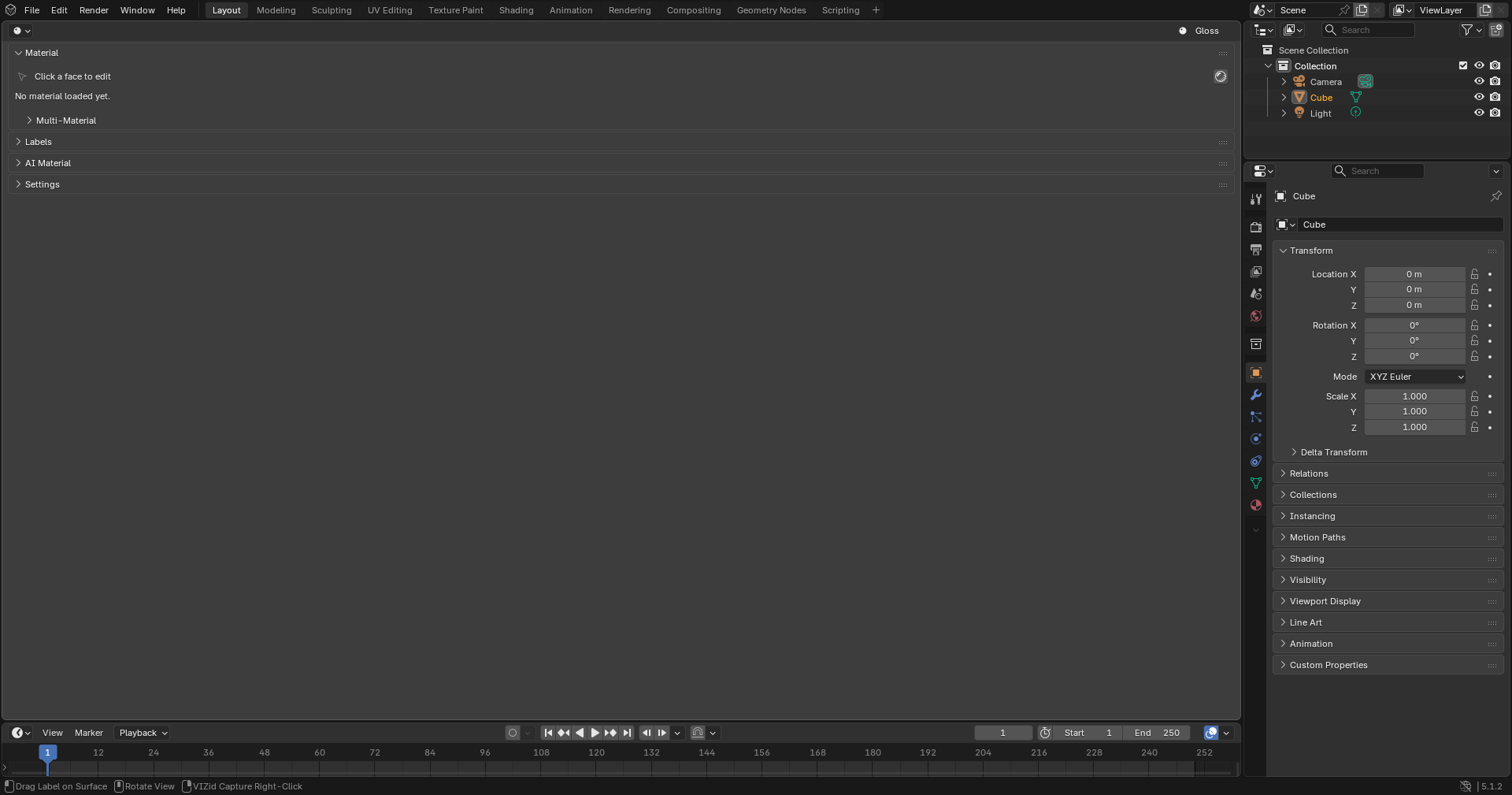
The VIZid Gloss material editor.
The material editor is where a model is dressed: every part is given a material – a metal, a plastic, a paint, a stone, a fabric – with its own colour, finish, textures and logos. It is the core “make it look real” tool of VIZid Suite, built so a designer can work surface by surface without touching Blender’s shader nodes.
The editor is built around a single idea: click the surface you want to change, and its material loads into the panel. Picking a material type (one of around eighty – Chrome, Brushed Aluminium, Metallic Paint, Carrara marble, quilted leather, frosted glass, candle wax, and so on) rebuilds the surface as that material and exposes only the controls that type needs. Textures, labels and multi-material variants layer on top of that.
The material editor runs in the dedicated VIZid Gloss editor in the fork. In stock Blender it falls back to a VIZid Gloss tab in the 3D Viewport sidebar, opened with N. The panels and controls are the same in both. The viewport texture and label gizmos are driven from the 3D Viewport’s left Toolbar (T) so they sit next to the handles they move.
Materials made here are the same materials the asset library stores and that CMF Looks reuse part-by-part, and they are what the render manager puts in front of the camera.
Reference
- Editor:
VIZid Gloss
- Panel:
Picking a Surface
The material editor always edits one surface at a time. The Material panel header shows what is loaded – the object and face being edited, or Click a face to edit when nothing is picked yet.
Surfaces are picked straight from the viewport with Quick Material Selection, the editor’s click-a-face workflow. With it on, clicking (or double-clicking) a face in the 3D Viewport loads that face’s material into the editor, makes its part the active object, and focuses the matching material slot, so the whole panel follows the surface under the cursor.
The mode is governed from the Settings panel at the foot of the tab:
- Quick Material Selection
Turns the click-a-face listener on or off. It is on by default.
- Single / Double
Whether a single click picks the material (clicks still select as normal), or a double-click is required. In Single mode a double-click additionally opens the editor and a texture-channel popup.
- Auto Material Preview
Switches the viewport to Material Preview shading when a face is picked, for a live preview. Off by default.
Picking only works in Object Mode; the panel says so if the scene is in another mode. The Material Preview button in the panel header switches the viewport to Material Preview shading at any time.
Converting to a VIZid Material
A surface whose material VIZid Gloss has not set up yet is loaded without changing it: the panel shows a minimal view – the material’s name and its base colour, metallic and roughness – alongside a Convert to VIZid Material button. Existing shading is never silently rebuilt.
Convert to VIZid Material rebuilds the material as a VIZid Gloss material, carrying its current base colour, roughness and metallic across, and unlocks the full editor. The reverse, Convert to Standard Material, returns it to a plain Principled BSDF carrying the current colour, roughness and metallic, removing VIZid Gloss’s node graph, textures and labels.
The Material panel also carries the per-material actions:
- Make Unique for This Face
Gives the clicked face its own copy of the material, so edits here no longer affect other faces that share it. A duplicate icon in the header flags a material used more than once.
- Save to Library
Saves the active material to the asset library with a thumbnail (see Saving to the Library).
Material Types & the Surface Panel
The Surface panel, showing the controls a type exposes.
The Surface panel is the heart of the editor. At its top, two dropdowns choose the material: a Category picker and a Type picker that lists only the types in that category. Choosing a type rebuilds the surface as that material, applies its preset values, and exposes only the controls that type actually uses – so a Diffuse material shows just colour and roughness, while a marble shows the vein controls. The Reset Type to Preset button beside them restores the type’s preset defaults.
Below the type pickers, a column of sliders shows the core controls for the chosen type, drawn from a shared set:
- Roughness
How sharp or soft the reflections are – low is glossy, high is matte.
- Metallic
How metallic the surface reads (shown for metals and the general-purpose types).
- Specular Level
The strength of the non-metallic highlight.
- Transmission / IOR
How much light passes through, and the index of refraction, for transparent materials.
- Clearcoat / Coat Roughness
A clear lacquer over the surface and how polished that coat is.
- Anisotropic / Aniso Angle
A directional, stretched highlight and its direction (brushed metal, satin).
- Emission / Emission Strength
The colour and brightness of a self-illuminating surface.
A Rounded Edges toggle adds a shader-level bevel of a given radius (in millimetres) so hard edges catch a highlight without modelling a fillet.
The types are organised into families. The families below list the controls each one adds beyond the core sliders.
Basic & Plastic
The Basic category covers everyday surfaces – Diffuse, Flat, Matte, Generic, Measured, Paint and the full-control Advanced type, which exposes every slider at once. The Plastic category holds Plastic, glossy and Transparent plastic, and Rubber. These expose colour, roughness and (where relevant) specular level, clearcoat, transmission and IOR.
Metals
The Metal category covers Metal, mirror Chrome, Brushed Aluminium, Brushed Metal, Anisotropic and Metallic Paint. Polished metals expose colour and roughness; the brushed and anisotropic types add an Anisotropic strength with Brush Length and Brush Width sliders that drive a procedural directional groove. Metallic Paint adds a Flake Amount slider for a sparkling metallic-flake clear coat.
Glass & Transparent
The Glass category holds Glass, Frosted Glass and the see-through Xray look. These expose Transmission and IOR for refraction, with roughness for a frosted finish; frosted glass also carries a faint volumetric haze.
Stone
The Stone category is a deep set of procedural surfaces: white Marble and the named varieties Carrara, Calacatta Gold, Statuario, Nero Marquina, Portoro, Emperador and Verde; Granite in grey, black and pink; Obsidian; and glazed Ceramic. The marbles and granites build their pattern from a Stone Color body, one or two Vein colours, and a set of vein controls – Vein Size, Vein Density, Vein Width, vein Distortion, Sharpness and Mottle – so the stone can be tuned without a texture. Marbles also carry the soft internal glow and gentle clear coat of polished stone.
Fabric & Leather
The Fabric category – Velvet, Cloth and Satin – exposes a Sheen weight with Sheen Roughness and Sheen Tint for the soft fuzzy rim light of cloth; satin adds an anisotropic highlight.
The Leather category is fully procedural: Leather, Black, Automotive, Worn, Suede, Faux and Quilted. Each builds grain, pores and wear from two leather colours and a set of sliders – Grain Size and strength, Pore Size and strength, grain Distortion, and the Worn, Distress and Hide Marks aging controls. Quilted leather adds a Quilt Panel size for the diamond padding, and suede adds a sheen.
Subsurface & Porous
The Organic category gathers the soft, light-scattering materials: Wax, Skin, Jade, Soap, the Translucent types, and the porous Sponge, Foam and Pumice. These expose a Subsurface (or Translucency) weight with SSS Scale and SSS Radius for how deeply light bleeds through, and the porous types add a Porous Volume control.
Volumes
The Volume category – Gummy, Jelly, Smoke and Cloud (and the Frosted Glass shell) – fills the body with a participating medium. These expose Volume Density, a Volume Color and a Volume Scatter anisotropy, plus the surface’s transmission and IOR for the clear shell around it. Smoke and cloud make the surface itself transparent so only the medium shows.
Emissive & Toon
The Special category holds Emissive and Toon. Emissive exposes an Emission colour and Emission Strength for a self-lit surface. Toon builds a stylised cel look with Cel Bands (the number of flat shade steps), a Shadow depth, and an ink Outline with its own colour.
Grounds
The Ground category provides studio floors that catch shadows and reflections. When a Ground type is the active material, a Ground & Environment panel appears with the controls for that floor:
- Shadow Catcher
An invisible ground that catches real cast shadows (EEVEE and Cycles).
- Reflective Floor
A visible reflective floor with controllable reflection strength, colour, saturation, roughness and contrast, plus a radius-masked contact shadow.
- Contact Shadow
A controllable contact shadow whose Shadow Radius masks it and Shadow Color tints it (Cycles).
The same panel carries scene-wide environment ray-visibility toggles – whether the world/HDRI is seen by the Camera, Reflection, Diffuse and Transmission rays – which affect the whole world rather than the one material.
Textures
A texture channel: source, mapping and transform.
The Textures panel layers images and procedural patterns onto a material. It is split into four channels, chosen by the tab row at the top:
- Diffuse
The surface colour, with a colour swatch as its base.
- Specular
The reflection/highlight colour.
- Bump
Surface relief, with a Bump Height slider and a Normal Map toggle that treats the image as a tangent-space normal map.
- Opacity
Transparency, with an Opacity slider.
A texture icon on a tab marks a channel that already has a texture. Each channel has its own source, mapping and placement.
Image and Procedural Textures
The Texture dropdown chooses the channel’s source. Image loads an image file – with file-browser, fit-to-image and clear buttons, Repeat (tiling) extension, and Saturation, Brightness and Contrast adjustments. A Box projection can give each axis its own image for triplanar texturing.
The procedural options – Noise, Voronoi, Wave, Magic, Brick, Checker and Gradient – generate the pattern in the shader. Each exposes a real-world Feature Size plus its own parameters, and a two-tone Dark and Light colour mapping with per-region Random Hue, Saturation, Value and a Seed. The randomise buttons reshuffle the colours. The Advanced option lets a channel use any Blender texture node, searched for by name.
Projection (Mapping)
The Mapping box sets how the texture is projected onto the surface. The Projection dropdown offers:
- Planar
A flat projection along one axis. An Aim row points the projection down the X, Y or Z axis, or at the last face that was clicked, after which Orientation spins it in plane.
- Box
Projects from the six sides of a cube, with a Box Blend across the seams and a per-axis Face Orientation.
- Cylinder
Wraps the texture around a cylinder, with Wrap and Offset and optional capped ends.
- Sphere
Projects inward from a sphere.
- UV
Uses the mesh’s existing UV unwrap instead of a projection.
A Space control chooses the coordinate space – Object (uniform real units), Generated (stretched to the bounding box) or World (fixed in the scene) – and Flip H / Flip V mirror the texture. The Reset Mapping button returns the placement to a default footprint sized to the part.
The Mapping Gizmo
The Transform box places the projection interactively. Its Move toggle arms an in-viewport gizmo on the active channel, with Move, Rotate and Scale handles that can be shown individually. A Rotate row spins the mapping about a chosen axis by a step angle, and a foldaway Fine Placement section gives numeric Loc, Rot and Width/Height/Depth fields.
The same gizmo controls also appear in the 3D Viewport’s left Toolbar (T), under VIZid Gizmo, so the move/rotate/scale handles sit beside the surface they place. A Material / Label mode toggle there chooses whether the gizmo edits a texture channel or a label, and a dropdown picks which one.
Linking Channels
A channel can be synced to others by giving it a shared link name (the Sync field, with a link toggle and a dropdown of names already in use). Channels that share a name share their texture, mapping and placement, so a bump and an opacity map can follow the same image and projection. A padlock on an individual value lets that value override the group while the rest stays linked.
Labels & Decals
The Labels panel adds logos, stickers and decals to a surface – label decals projected flat onto the model. The label list at the top of the panel has buttons to add, duplicate, reorder and remove labels; later labels in the list layer over earlier ones where they overlap.
Add Label picks an image and drops it on the face currently being edited, seated upright on that surface. Each label carries:
- Image
The decal image, loaded or replaced from a file.
- Type
The label’s own material type – so the patch can be a matte sticker (Diffuse), a metal foil, a glow (Emissive), and so on – with the matching sliders.
- Size
Auto Size uses the image’s DPI and aspect, or an explicit Width and Height (in metres) with a Lock Aspect toggle. Flip H / Flip V mirror it.
- Look
Opacity, Brightness, Contrast, a Tint with strength, a Colourise amount, and a First Face Only option that keeps the decal off wrapped-around faces.
The Move toggle is the placement tool. While it is on, the move/rotate/scale handles appear and the label can be dragged across the model with the mouse, re-projecting flat onto each face as it goes; a Keep Upright option stops it twisting across a curved surface. A Spin control rotates the label about its face normal by a step angle, and Reset Orientation re-seats it upright on its current face. A foldaway fine-placement section gives numeric location and rotation.
Multi-Material
The Multi-Material panel turns one surface’s material into a set of variants – a colourway picker for that part. Make Multi-Material seeds the set from the current material; the set then carries an editable name and a list of variant materials.
The variant list has buttons to Duplicate Material (add the current material as a new variant), remove a variant, save the whole set to the library, and copy the set to the clipboard. Selecting a variant in the list shows it on the surface. Because the set lives on the materials themselves, every object and surface linked to any member sees the whole list.
A per-surface Link row controls how surfaces switch together: surfaces that share a sync-group name and are linked change variant together, matched by position. Paste Set pastes the copied set onto the active object, or onto every selected object as an independent set.
Two exits leave the set:
- Deactivate
Collapses the set to the current variant and syncs every surface using it.
- Detach
Removes only this material from the set; the set lives on for the other surfaces.
Clipboard, Links & Quick Presets
The Clipboard & Quick Presets panel gathers every “push this material somewhere” action. The top row copies and pastes the active material’s settings and offers an Eyedropper – a one-shot pick that clicks another face to copy its material onto the active one.
Apply to Object and Selected apply the active material to a whole object or to every selected mesh. When more than one mesh is selected, Linked pastes the copied material as one shared data-block (editing it later updates them all), while Unlinked gives each object its own independent copy.
The same actions are on the Object-Mode right-click menu, acting on the material under the cursor: Copy Material, Paste Material, Paste Linked Material and Unlink Material, plus paste-to-selected commands.
The Quick Presets block is a small local store of material settings, with add, apply and delete buttons – a quick scratch pad. The full browser, with folders and thumbnails, is the asset library.
Colours can also be linked. The colour picker on a channel can save a colour as a named swatch and link the channel to it, so a project palette colour stays in sync across every material that uses it.
AI Material
The AI Material panel generates a material from a description or a reference image, applied to the active material. It is the same provider-and-key setup as VIZid Cosmos: the Provider and Model are picked in the panel, and Set API Key enters the key for the chosen provider (stored in preferences, never in the blend-file). Some local providers need no key.
Two entry points share the generator:
- Generate Material
Builds a material from the text prompt (for example, “brushed copper with a clear coat”) and applies it to the active material.
- Generate from Image
Recreates a material from a picked reference image – a photo or swatch – optionally guided by the prompt.
Generation runs in the background so Blender never blocks, and the result can be saved straight to the library with Save to Library.
Saving to the Library
Save to Library, in the Material panel header (and in the AI panel), saves the active material to the asset library with a thumbnail. For a multi-material, the same button saves either the active variant or the whole set.
Library materials live outside the blend-file, so a material is saved once and reused across every project, dragged from Blender’s Asset Browser, or applied part-by-part through a CMF Look. The library is also where a material’s versions, variants and notes are kept; see the Asset Library page for the full browse, save and maintenance controls.