CMF Looks
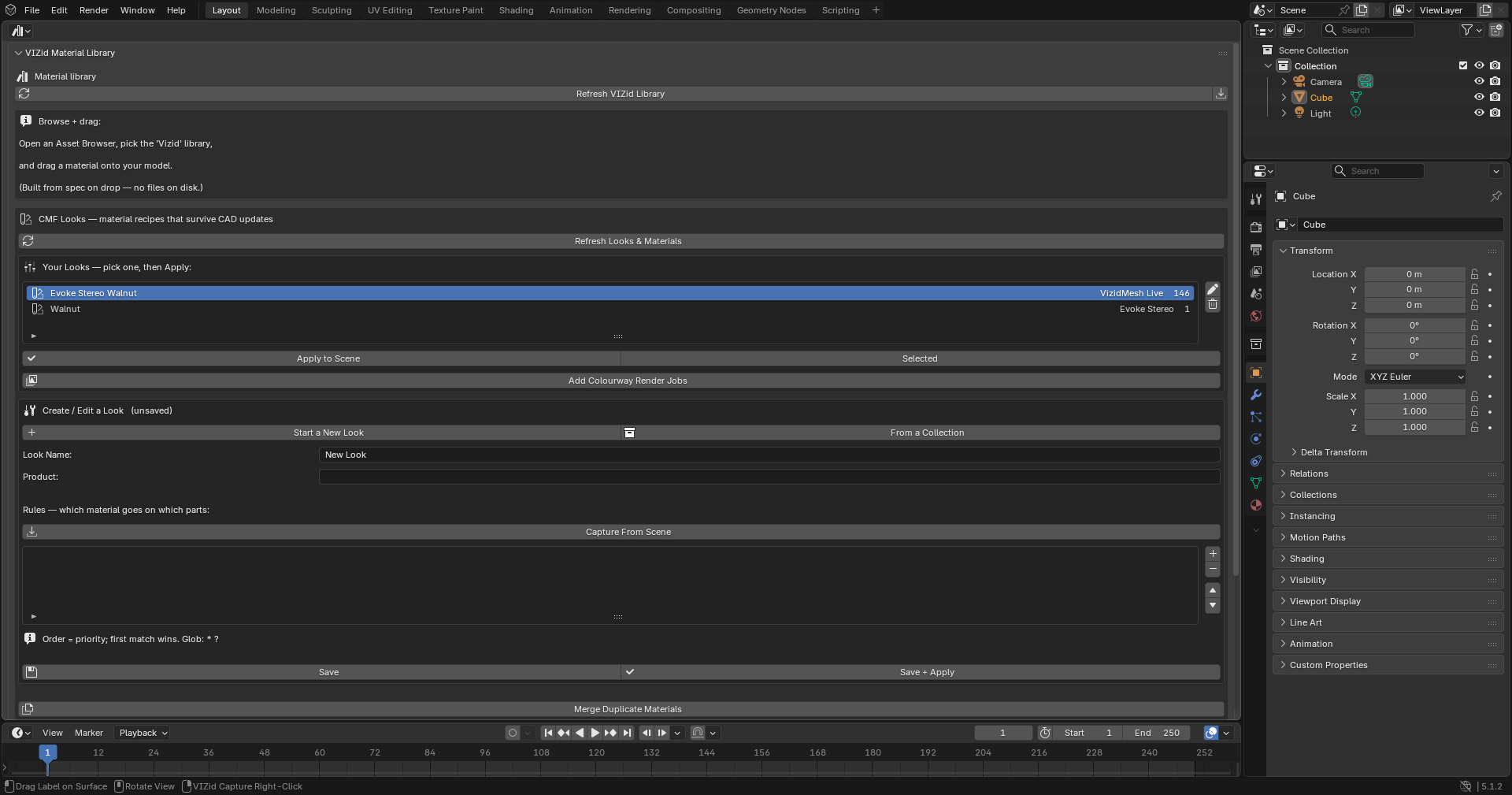
The CMF Looks editor.
A CMF Look is a named, part-aware material recipe: instead of assigning a material to each object by hand, a Look maps the parts of a model to materials in the asset library by pattern, so the same recipe re-dresses the model every time it is applied – including after the CAD is re-imported or re-meshed. CMF stands for Colour, Material, Finish, the industrial-design term for what every part of a product is made of.
Reference
- Editor:
Asset Library, 3D Viewport
- Panel:
In the VIZid fork the CMF Looks editor lives in the Asset Library dashboard. In stock Blender, where there is no Library editor, it appears instead as a VIZid CMF tab in the 3D Viewport sidebar (N).
Why CMF Looks Exist
In Blender a material is assigned per object. That assignment lives in the
.blend file and is bound to a specific object. The moment a new CAD
revision is re-imported – or an existing model is re-meshed with
VIZid Mesh – the old objects are replaced by new
ones, and every per-object material assignment is destroyed. The work of dressing
a product in materials then has to be redone by hand, revision after revision.
A CMF Look removes that cost. A Look is a recipe that re-binds materials to parts by pattern rather than by object identity. Because it matches a part by its name, path or tag, the recipe still fits the new parts after a re-import: applying the Look again re-matches them and re-applies the right material to each one. A single model can also carry several Looks – a red version, a brushed version, a premium chrome version – and switch between them in one click.
Looks are stored in the asset library, not in the .blend file. A Look is
therefore available in every file and can be shared with a team alongside the
materials it references.
The Mental Model
The CMF editor uses a small, consistent vocabulary. Every term below appears in the workflow that follows.
Term |
Meaning |
|---|---|
Look |
A named recipe: a Product plus an ordered list of rules. |
Rule |
One line of the recipe – a Match, a Selector and a Material. |
Match |
What a rule compares against: Path, STEP Name or Tag. |
Selector |
The glob pattern a rule tests (default |
Material |
The library entry a matching part receives (stored by id). |
Variant |
An optional label on a rule, for a material that has alternatives. |
Path |
The part’s assembly path, e.g. |
STEP Name |
The part’s original CAD name (here, the object name). |
Tag |
A hand-applied label on a part (a |
Apply |
Run a Look over the model, writing the matched material to parts. |
Capture |
Turn the materials already on the model into a Look automatically. |
What a Look Contains
A Look’s rules in the editor.
A Look has a Name, an optional Product (the model the Look is for) and an ordered list of rules. Each rule has these parts:
- Match
What the rule compares against: Path (the part’s assembly path), STEP Name (the part’s original CAD name) or Tag (a tag on the part).
- Selector
The pattern to match, default
*. Selectors are glob patterns:*matches any run of characters and?matches a single character. Matching is case-insensitive.- Material
The library material applied to matching parts. The picker searches the library by name, but the rule stores the material’s stable identifier (
entry_id), not its name. This is why renaming a material never breaks a Look.
A rule may also carry an optional Variant label, for a material that has alternatives.
Rule order is match priority. Specific rules belong near the top and a catch-all
(*) belongs at the bottom.
How a Rule Matches a Part
This is the heart of CMF. When a Look is applied, every part is reduced to a small part reference and each rule’s selector is tested against one field of it. The three Match kinds choose the field, and each value has a specific source:
Match kind |
Value tested (where it comes from) |
|---|---|
Path |
The part’s |
STEP Name |
The object name. |
Tag |
Custom properties named |
Glob semantics. * matches any run of characters (including /), ?
matches exactly one character, and matching is case-insensitive. So
*body* matches any part with “body” anywhere in its path, Housing/*
matches everything in the Housing assembly, and Button_? matches Button_1
but not Button_10.
Ordering is priority – first match wins. Parts are tested against the rules
top to bottom and the first rule that matches a part decides its material. Put
specific rules at the top and a * catch-all at the bottom. If * is placed
first, every part matches it and nothing below it is ever reached.
Two facts are critical to predict the result of an Apply:
Slot 0 only. The matched material is written to slot 0 of each matching object (or appended if the object has no material slots). It is not applied per face and never touches slots 1 and above. A part with a second material on slot 2 keeps it.
No match means no change. A part that matches no rule is left exactly as it was. CMF never blanks a material; it only writes the materials its rules resolve.
Capture or Build
There are three ways to fill a Look’s rules. The right one depends on whether the parts already wear library materials.
Method |
Use it when… |
|---|---|
Capture From Scene |
Parts already wear library materials. Adds one Path rule per part, mapping the part’s path to its material. Parts whose material is not from the library are skipped. |
From a Collection |
A legacy file whose materials were never in the library. Creates library entries for those materials, dedupes identical ones, builds rules and saves the Look in one click. |
Build by hand |
There are no materials yet, or full control is wanted. Add rules one at a time and pick each material. |
- Capture From Scene
Reads every part and, for each one that carries a library material, adds a Path rule mapping that part’s path to that material. Capture relies on the
vizid_entry_idthat is stamped onto a material when it is applied or saved from the library, so only library-sourced materials are seen. A part whose material never went through the library is skipped; if nothing is found, the editor reports No parts with a VIZid-library material found.- From a Collection
A one-click path for legacy files. It captures every mesh part in the active collection (or just the selected objects), creating a library material for any part whose material is not in the library yet, dedupes identical materials, then builds and saves the Look. A dialog sets the scope, the Look name and the library folder for the new materials. The auto-created materials can be given proper CMF names afterwards with the per-rule Rename Material button.
Because Capture From Scene writes exact part paths, the resulting
rules only match those exact parts – they will not match renumbered parts after
a CAD revision until the selectors are broadened with * (for example, change
Housing/Body_01 to Housing/Body_*).
Browsing and Applying Looks
- Refresh Looks & Materials
Reloads the saved-Looks list and the rule material picker from the library. The list normally updates by itself when a material is saved, so this is only needed when something looks out of date (or after Library service unavailable).
- Your Looks
Lists every saved Look with its name, its product and its rule count. Beside the list, the pencil button (Edit Look) loads the selected Look into the editor and the trash button (Delete Look) removes it after a confirmation.
- Apply to Scene / Save + Apply
Apply to Scene runs the selected Look over the whole model. Save + Apply, in the editor, stores the Look being edited and applies it in one step.
- Selected
Applies the Look only to the parts selected in the 3D Viewport.
When a Look is applied the active Look is recorded on the scene
(scene.vizid_active_cmf), which drives the {look} render filename token.
As above, each matched material is written to slot 0 of the matching parts,
and parts that match no rule are left untouched.
Worked Example
The goal: give every metal part of a phone a brushed-aluminium finish and the buttons a soft-touch black, saved as a reusable Look called Phone – Brushed.
Refresh. Open the CMF Looks editor and click Refresh Looks & Materials so the material picker lists the library.
Start a new Look. In the Create / Edit a Look box click Start a New Look. Its title shows (unsaved).
Name it. Set Name to
Phone - Brushedand, optionally, Product to the project code.Add the metal rule. Click Add Rule (+). Set Match to Path, type the selector
*Frame*(add a second rule with*Housing*if the metal parts span two names), and pick Brushed Aluminium as the material.Add the button rule. Add another rule: Path, selector
*Button*, material Soft-Touch Black.Add a catch-all. Add a final rule: Path, selector
*, material Grey Plastic. This dresses every remaining part so nothing is left bare.Order it. Use the Move Rule arrows so the specific rules (
*Frame*,*Button*) sit above the*catch-all. First match wins, so the catch-all must be last.Save. Click Save to store the Look, or Save + Apply to store and dress the model at once. The Look now appears in Your Looks.
Verify. Change a part’s material by hand, select the Look in the list and click Apply to Scene; the model snaps back to the recipe.
Tag variant
To target parts by an explicit tag instead of their path, select the metal parts
and add a custom property named tag_metal to each. Then set the rule’s
Match to Tag and its Selector to metal. The rule now matches any part
carrying that tag, regardless of its path or name.
Make it a colourway set
Save a Phone – Midnight and a Phone – Red alongside Phone – Brushed, then
click Add Colourway Render Jobs. One render job is queued per saved
Look, each output named {project}_{look}_{ver} – one render per finish in a
single queue.
Looks Across CAD Revisions
A Look’s value is realised when the CAD changes. Re-import or re-mesh the new revision (the old parts are replaced), select the Look and click Apply to Scene. The result depends on how the selectors are written:
Broad selectors re-match. A rule like
Housing/Body_*(or*body*) still matches the renumbered parts of the new revision, so the right material lands on each one automatically.Exact captured paths do not. A rule like
Housing/Body_01, as written by Capture, only matches that exact part. After parts are renumbered it matches nothing – broaden it with*.New parts fall through. Because first-match-wins, a brand-new part that fits no specific rule drops to the
*catch-all. Only genuinely new features that need their own finish require a new rule.
Colourway Renders
A Look feeds rendering directly. In VIZid Gloss a render job can name a CMF Look from its CMF Look menu. At render time the Look is applied (part-aware), the frame is rendered, and the exact pre-render materials are then restored, so a queue of Looks renders any number of CMF variants of one model while leaving the scene unchanged.
- Add Colourway Render Jobs
Queues one render job per saved Look, each output named through the
{look}filename token (the Look’s name).
Relationship to the Asset Library
CMF Looks and the Asset Library are two halves of the same system:
The material a rule points to is an asset-library entry; a Look only stores the entry’s id, never a copy of the material.
Looks are kept in the same secure store as the materials, so they travel with the library across files and teams.
Rename Material renames the library entry everywhere it is used. The Look keeps working because its rules reference the material by id, not name.
Dedupe merges byte-identical materials into one entry; Looks that referenced either copy continue to resolve.
Troubleshooting
Symptom |
Cause and fix |
|---|---|
No parts with a VIZid-library material found on Capture |
The materials lack a |
A part got the wrong material |
A broader rule above it matched first. Move the specific rule up. |
A part is unchanged after Apply |
No rule matched it. Add a |
Every part got the same material |
The |
A captured Look broke after a CAD revision |
Captured rules hold exact paths. Broaden them with |
A Tag rule matches nothing |
The part needs a |
|
|
An old material is still on slot 2 after Apply |
Apply replaces slot 0 only. Remove the extra slot if it is unwanted. |
Empty material dropdown / Library service unavailable |
Click Refresh Looks & Materials to reload the library. |
Edited a Look but the model did not change |
Save stores the Look only. Use Save + Apply or Apply to Scene. |
Renamed a material – did the Look break? |
No. Rules reference the entry by id, so a rename never breaks a Look. |