Asset Library
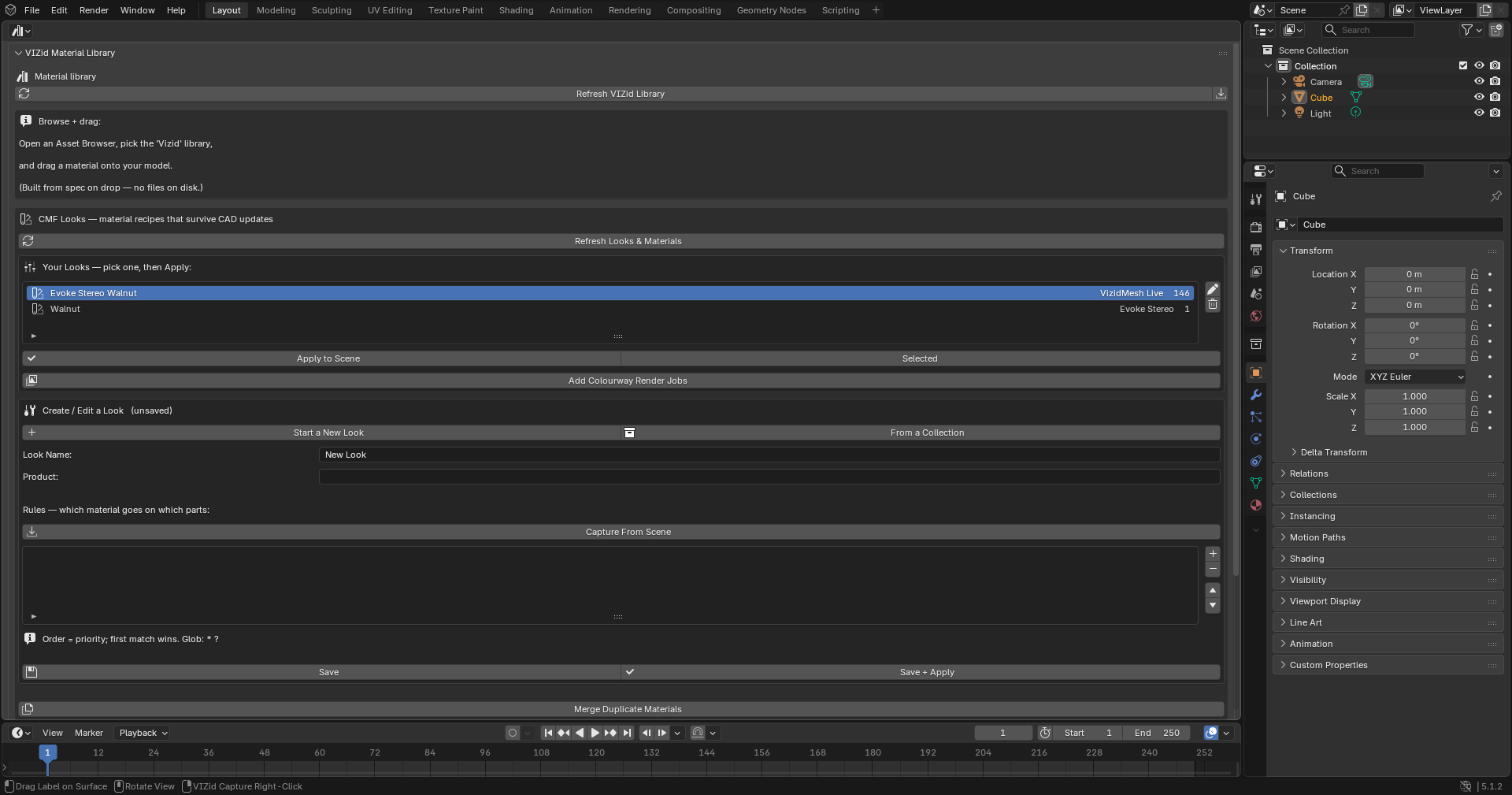
The VIZid Material Library.
The Asset Library is the material platform of VIZid Suite. It is a bespoke,
content-addressed store of materials, CMF Looks and
colour palettes that lives outside the .blend file, so a material is
saved once and reused across every project. Unlike a scene material, a library
entry survives CAD re-import: a part-aware CMF Look re-applies the right material
to the right part after every re-mesh or live-sync update.
Materials are kept in an encrypted store as immutable, content-addressed objects referenced by a small manifest, which records names, folders, versions, notes and CMF data. Identical content is stored once, so duplicate materials cost nothing and a saved material’s history is kept. Because the store is a self-contained, key-protected folder, it can be placed on a shared folder and used by a whole team.
The library normally appears in Blender’s own Asset Browser under the VIZid library, where materials can be dragged straight onto the model. A Material Library panel in the VIZid Gloss tab of the 3D Viewport sidebar (N) provides the full browse, save and maintenance controls.
Reference
- Editor:
Asset Browser, 3D Viewport
- Panel:
Browsing the Library
The Material Library panel.
The Material Library panel is a two-pane browser: a folder tree on the left and the materials of the selected folder on the right.
At the top of the panel a search field filters the materials by name or category, and a Sort menu orders them by Name or Newest. The Undo Library Change and Refresh Library buttons sit beside it; the first reverses the last destructive change (the library keeps a short undo history), the second reloads the library from the store. The first time the panel is opened, Load Library fetches the entries.
A View toggle switches the material pane between Grid (a thumbnail grid, the default) and List (a compact thumbnail list), and a Size slider scales the thumbnails. Clicking a thumbnail selects that material; the selected material’s name is shown with the action buttons below.
Folders
The folder tree organises materials into nested folders. The All Materials root holds everything; selecting a folder shows only that folder’s materials.
Below the tree, New Folder creates a subfolder under the selected folder, and the rename and delete buttons beside it rename the selected folder or delete it. Deleting a folder also deletes every material inside it and its subfolders; the action is confirmed first and can be reversed with Undo Library Change.
The selected material can be moved between folders with the Move to menu and the move button beside it.
Saving a Material
Reference
- Editor:
3D Viewport
- Panel:
Save Current saves the active material to the library. A dialog asks for a Name, a destination Folder (chosen from the folder tree) and an optional New subfolder to create under it; the resolved destination path is previewed as the choices are made. Saving renders a sphere thumbnail for the entry (the first save compiles the render engine, so it may pause briefly).
When the active object carries a multi-material set, the dialog offers to save the whole set as one entry, marked Multi-Material in the browser. Applying such an entry rebuilds every slot on the active mesh.
A saved material is stamped with its library entry, so it is recognised by the CMF system and can be captured into a Look without being re-applied first.
Two maintenance buttons sit beside Save Current in the same row:
- Sync Asset Browser
Rebuilds Blender’s Asset Browser view of the library so the materials appear there, draggable onto the model. The library keeps itself in sync after every save, delete or move, so this is a manual re-sync.
- Import V1 Presets
Imports the legacy V1 JSON preset library into the encrypted store, under a V1 Import folder. Use it once to bring an older preset library forward.
Applying a Material
With a material selected, the action row offers three ways to apply it:
- Apply Library Material
Replaces the active material with the selected library material.
- Apply to Faces
Starts a modal tool that applies the material to faces clicked in the viewport. This is the equivalent of dragging a thumbnail onto the model. Click faces to apply; Esc or RMB finishes.
- Edit Library Material
Opens the entry on a hidden preview sphere for editing (see below).
The same row also offers Rename Material and Delete Library Material; deleting is confirmed first and can be reversed with Undo Library Change.
Materials can also be applied from the Asset Browser. With the VIZid library selected, drag a material onto a mesh object; the material is built from its stored specification at the moment of the drop, so nothing is written to disk.
Editing an Entry in Place
Edit Library Material builds the selected entry onto a hidden preview sphere and frames it in the viewport. The material can then be adjusted with the normal VIZid Gloss material controls. While an entry is open for editing, an Editing box appears in the panel with two buttons:
- Update
Saves the edited material back to the same library entry, keeping its name, folder and tags (Update Library).
- Close
Removes the preview sphere and discards any unsaved changes (Close Library Editor).
Editing in place avoids having to apply a material to the model and re-save it, which would otherwise create or overwrite an entry by name.
Entry History
The secure store keeps an entry’s history. Saving over an entry is an in-place update: Save Current (re-saving by the same name) and the Update button of the in-place editor both write back to the same entry, and the store retains the earlier state rather than discarding it. Because the store is content-addressed, identical content across saves is held only once, so this history costs nothing.
The history is kept in the store; the Material Library panel itself does not yet expose controls to browse versions, add notes or roll an entry back – saving is the way to update an entry in place.
Material variants – alternative Colour/Material/Finish treatments of the same part – are not a property of a library entry. They are a CMF concept, set per-rule when building a Look; see CMF Looks.
Merging Duplicate Materials
Reference
- Editor:
3D Viewport
- Panel:
Merge Duplicate Materials collapses materials whose makeup is exactly identical into a single entry. This is useful after a CAD import that brought in hundreds of materials from parts of no interest. Materials that only look similar – a different roughness, an extra label, a different texture – are kept separate.
The operator’s dialog sets the scope:
- Whole Library
Clean the entire library, ignoring the folder.
- Folder
Clean duplicates within one folder and its subfolders (pre-filled with the folder selected in the browser).
- Preview only (don’t delete)
Report what would be merged without changing anything. Run a preview first, then untick it to apply.
Entries that carry notes, variants or tracked resources are never merged away. Any CMF Look that referenced a removed duplicate is repointed to the surviving material automatically.
The Library Dashboard
In the fork, the dedicated Library editor opens on a VIZid Material Library dashboard – the editor home for the library. It is the place to keep the library in sync and to manage the part-aware CMF Looks and the colour palettes; the actual browse-and-drag happens in Blender’s own Asset Browser. From the dashboard:
- Install Starter Materials
A one-click installer that adds a curated pack of about a dozen common product-design materials (anodised aluminium, brushed steel, chrome, gold, soft-touch, ABS, glass, ceramic and more) into a Starter folder, so a new library is useful straight away. Materials already present by name are skipped.
- Rebuild Missing Thumbnails
Renders thumbnails for any library entries that lack one – typically older or imported entries – and re-syncs the Asset Browser. (This button is also surfaced in the Asset Browser header.)
Colour Palettes
A colour palette is a named set of colour swatches – a brand or CMF colour set that can be saved into the library and shared like materials. Palettes are managed in a Colour Palettes block (in the Library dashboard of the fork, or a VIZid Colour Palettes sidebar panel in stock Blender).
- Refresh Palettes
Reloads the list of saved palettes from the library.
- Save Scene Palette…
Saves the current scene’s colour swatches into the library under a name. The scene palette itself is the live, linked swatch set stored in the
.blend; this saves a named copy of it into the shared store.- Load Palette
Loads the selected library palette into the scene. Replace scene palette clears the scene’s swatches first; otherwise the loaded colours are merged in.
- Delete Palette
Removes the selected palette from the library (confirmed first).
A scene swatch can be linked into a material channel: editing a linked colour later updates every channel linked to it, live, throughout the file.
Team Sharing
The library store is a self-contained, encrypted folder – the content-addressed objects, the manifest and a key file – with no decrypted cache on disk. Placing that store on a shared folder lets a team use one library: the same materials, CMF Looks, versions, notes and palettes are available to everyone with access to the folder and the key.
Only the encrypted store is ever shared. Thumbnails, which cannot be turned back into a material, are the only rendered artefact that travels with it; every material is rebuilt from its specification when applied, so the master library is never exposed as editable files. Because each entry is an independent object, several people can add and change materials without locking or corrupting the whole library.
A shared library keeps a CMF standard consistent across a team: a Look authored once re-applies the agreed materials to the right parts on every model and every CAD revision. See CMF Looks for the part-aware material-assignment system that builds on the library.