Introduction
A strip is a container which carries frames provided by one or more sources (input). It is defined by a Start Frame and a Length, and is displayed as a colored horizontal rectangle.
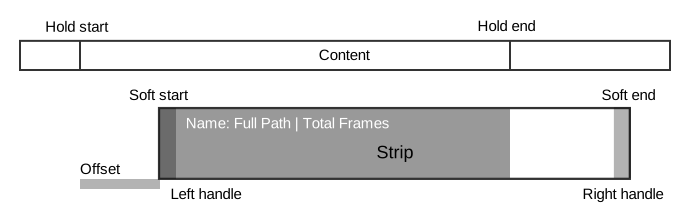
Strip schematic.
Adding Strips
Reference
- Menu:
- Shortcut:
Shift-A
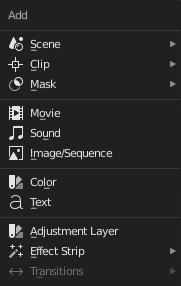
The Add Menu.
The Add menu is the primary way to add content to the Video Sequencer. It can be accessed from the Sequencer header or by hovering the mouse cursor over the Sequence workspace and pressing Shift-A.
In general, you load media strips, add effect and transition strips, and build your edit by arranging and animating these strips over time. When adding items that require external data, the editor will switch to a File Browser to select the files to add. Supported file types are filtered by default.
The Add menu also includes a Search… entry, which allows quickly finding and adding strips by name, similar to add menus in other editors.
The start frame of newly created strips is placed at the current position of the Playhead. When loading multiple files (such as movies and sounds) at the same time, each strip is added sequentially.
Adding Effects & Transitions
Blender offers a set of effects that can be added to your sequence.
To add an effect strip, select one base strip (image, movie, or scene) by LMB clicking on it. For some effects, like the Cross transition effect, you will need to Shift-LMB a second overlapping strip (it depends on the effect you want). From Add menu pick the effect you want. When you do, the Effect strip will be shown above the source strips. If it is an independent effect, like the Color Generator, it will be placed at the position of the frame indicator.
Note
Since most Effects strips depend on one or two source strips, their frame location and duration depends on their source strips. Thus, you may not be able to move it; you have to move the source strips in order to affect the effect strip.
With some effects, like the Alpha Over, the order in which you select the strips is important. You can also use one effect strip as the input or source strip with another strip, thus layering effects on top of one another.
If you picked the wrong effect from the menu, you can always exchange it using Effect Strip.
Some effects such as Brightness/Contrast and Hue/Saturation can be applied using Strip Modifiers.
Visualization
They all become a color-coded strip in the Video Sequencer:
Scene strip: Light green.
Clip strip: Dark blue.
Mask strip: Red.
Movie strip: Aquamarine.
Image strip: Purple.
Sound strip: Turquoise.
Each of the effect strips has its own color.
Besides each of these default colors you can also assign individual strips an alternative color in the Strip Properties.
Note
These colors are dependent on the user interface Theme. The colors described above are in reference to Blender’s default theme.