In-Betweens
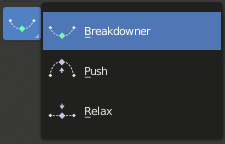
In-Betweens Tools.
There are several tools for editing poses in an animation.
There are also in Pose Mode a bunch of armature-specific editing options/tools, like auto-bones naming, properties switching/enabling/disabling, etc., that were already described in the armature editing pages. See the links above…
Blend Pose with Rest Pose
Reference
- Mode:
Pose Mode and Object Mode
- Menu:
- Menu:
Blend with Rest Pose linearly interpolates the current pose to the rest position. When blending with a negative factor, the pose is moved away from the rest position. Only one keyframe is needed for this tool unlike two for the other.
Push Pose from Breakdown
Reference
- Mode:
Pose Mode and Object Mode
- Tool:
- Menu:
- Menu:
- Shortcut:
Ctrl-E
Push Pose interpolates the current pose away from the linear interpolation between the surrounding keys. On your current frame, imagine a pose that is linearly interpolated from the surrounding keys. That is the base pose that this tool interpolates away from.
Relax Pose to Breakdown
Reference
- Mode:
Pose Mode and Object Mode
- Tool:
- Menu:
- Menu:
- Shortcut:
Alt-E
Relax Pose is the opposite of Push Pose from Breakdown. Hence at full influence, the resulting pose will be identical to a linear interpolation between the surrounding keys.
Pose Breakdowner
Reference
- Mode:
Pose Mode and Object Mode
- Tool:
- Menu:
- Menu:
- Shortcut:
Shift-E
Creates a suitable breakdown pose on the current frame.
The Breakdowner tool can be constrained to work on specific transforms and axes, by pressing the following keys while the tool is active:
G, R, S: move, rotate, scale
B: Bendy bones
C: custom properties
X, Y, Z: to the corresponding axes
Blend to Neighbor
Reference
- Mode:
Pose Mode and Object Mode
- Menu:
- Menu:
- Shortcut:
Shift-Alt-E
Transitions the current pose with the neighboring keyframes in the timeline. In order for this operator to work, there must be a keyframe before and after the current frame.